Screen mirroring, also known as screen casting, is a way of displaying content from your mobile device or computer on a larger screen, such as a TV. Vizio smart TVs come equipped with built-in screen mirroring capabilities, making it easy for you to share your favorite photos, videos, and apps on the big screen.
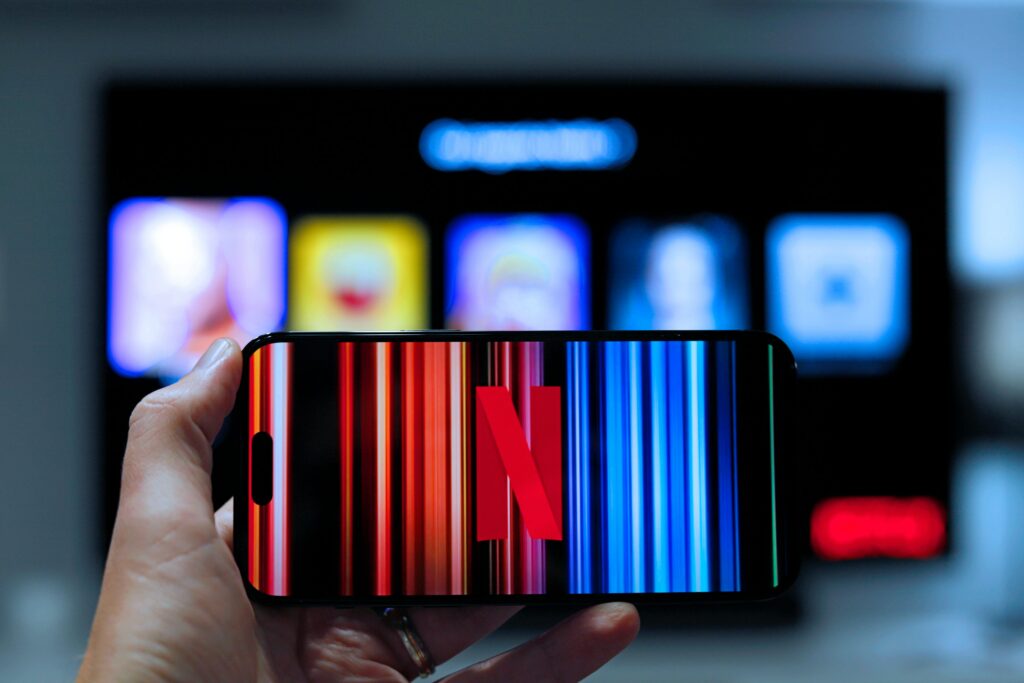
Here are the steps to screen mirror on a Vizio smart TV:
Step 1: Ensure your Vizio smart TV and mobile device or computer are connected to the same Wi-Fi network.
Step 2: On your Vizio smart TV remote, press the Input button.
Step 3: Use the arrow keys on the remote to select the “Screen Mirroring” option and press OK.
Step 4: On your mobile device or computer, navigate to the screen mirroring settings. This will vary depending on your device and operating system. For example, on an iPhone, you can access screen mirroring by swiping up from the bottom of the screen and selecting “Screen Mirroring”. On a Windows PC, you can open the Action Center and select “Connect”.
Step 5: Select your Vizio smart TV from the list of available devices.
Step 6: Once connected, your mobile device or computer screen will be mirrored on your Vizio smart TV. You can now navigate your device and use it as you normally would, with the content being displayed on the TV.
Some additional tips to make the most of screen mirroring on your Vizio smart TV:
- Use a strong Wi-Fi signal: Screen mirroring requires a strong and stable Wi-Fi connection. If your signal is weak, you may experience lag or interruptions in the content being displayed on your TV.
- Adjust the picture settings: Depending on the content you’re mirroring, you may need to adjust the picture settings on your Vizio smart TV to ensure the best viewing experience. For example, you may need to adjust the brightness, contrast, or color settings to optimize the picture.
- Use the right app: Some apps may not be compatible with screen mirroring. For example, Netflix and Amazon Prime Video have built-in screen mirroring features, but others may not. Check the app settings or documentation to see if it supports screen mirroring.
- Be aware of audio delays: Depending on the content and the devices being used, there may be a delay between the audio and the video. This can be particularly noticeable when streaming video or playing games. You can try adjusting the audio settings on your Vizio smart TV to reduce the delay.
Overall, screen mirroring on a Vizio smart TV is a great way to enjoy your favorite content on a bigger screen. With just a few simple steps, you can quickly and easily share your photos, videos, and apps with family and friends.