If your Seagate hard drive is not showing up on your computer, it can be frustrating and concerning. There are several reasons why this could be happening, ranging from hardware issues to software problems. In this article, we will discuss some common reasons why a Seagate hard drive might not be showing up and provide some troubleshooting steps to help you resolve the issue.
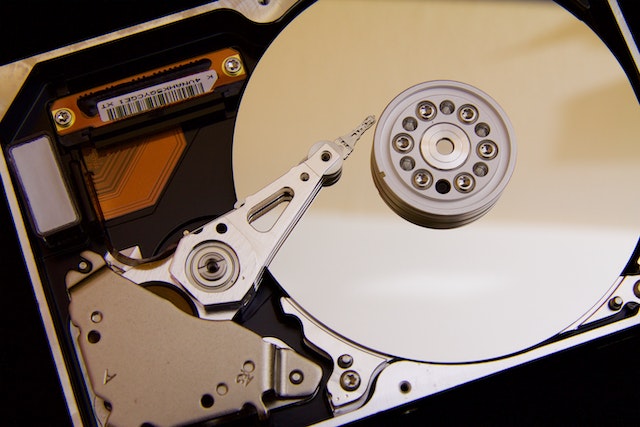
Reasons Why a Seagate Hard Drive Might Not Be Showing Up:
- Connection Issues: If your Seagate hard drive is not showing up, the first thing to check is the connection. Ensure that the USB or other connection cable is securely connected to both the hard drive and your computer. Also, try plugging the hard drive into another USB port to ensure that the port is not the issue.
- Driver Issues: In some cases, a Seagate hard drive may not be recognized by your computer because of driver issues. Ensure that you have the latest driver for the hard drive installed on your computer. You can usually find the driver on the Seagate website or through your computer manufacturer’s website.
- Compatibility Issues: Some Seagate hard drives may not be compatible with certain operating systems or computer configurations. Check the manufacturer’s website to ensure that your hard drive is compatible with your operating system and computer.
- Partition Issues: If your Seagate hard drive is not showing up on your computer, it is possible that it is not partitioned or formatted correctly. Use disk management tools in your operating system to check if the drive is partitioned and formatted correctly.
- Hardware Issues: It is possible that the Seagate hard drive itself has a hardware issue. This could be due to physical damage, wear and tear, or other issues. If you suspect a hardware issue, consider taking your hard drive to a professional data recovery service.
Troubleshooting Steps to Fix a Seagate Hard Drive That Is Not Showing Up:
- Check the Connection: Ensure that the connection between the Seagate hard drive and your computer is secure. Try plugging the hard drive into another USB port or using another connection cable to rule out connection issues.
- Install the Latest Driver: Ensure that you have the latest driver for your Seagate hard drive installed on your computer. You can usually find the driver on the Seagate website or through your computer manufacturer’s website.
- Check Compatibility: Ensure that your Seagate hard drive is compatible with your operating system and computer configuration. Check the manufacturer’s website for compatibility information.
- Check Disk Management: Use disk management tools in your operating system to check if the hard drive is partitioned and formatted correctly. If not, partition and format the hard drive correctly.
- Scan for Hardware Issues: Use a disk diagnostic tool to scan for hardware issues on your Seagate hard drive. This can help identify any physical damage or wear and tear that could be causing the issue.
- Check for Firmware Updates: Seagate hard drives may require firmware updates to ensure compatibility with your computer and operating system. Check the manufacturer’s website for firmware updates and install any available updates.
- Run System Restore: If your Seagate hard drive was previously working but has stopped showing up, try running a system restore to a previous point in time. This can help fix any software issues that may be causing the problem.
Conclusion:
If your Seagate hard drive is not showing up on your computer, it can be a frustrating problem to deal with. However, by following the troubleshooting steps outlined in this article, you can identify and resolve the issue. Remember to check the connection, install the latest driver, check for compatibility, use disk management tools, scan for hardware issues, check for firmware updates, and run a system restore if necessary.