Slack is a popular communication tool that allows teams to collaborate on projects and share information. One of the features of Slack is the ability to make video calls. This can be useful for remote teams who need to have face-to-face conversations or for teams that need to share screens during a meeting.
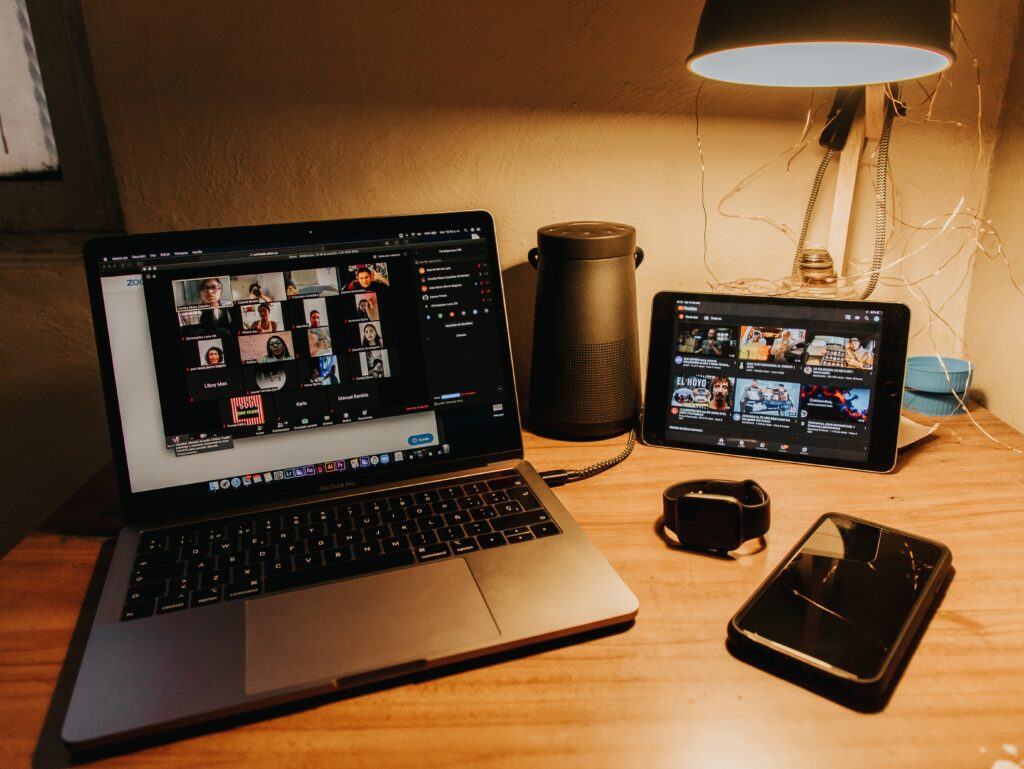
Here is a step-by-step guide on how to use Slack video calls:
- Open Slack and select the channel or direct message you want to make a call in.
- Click on the phone icon in the top right corner of the screen.
- Choose “Start a Call” or “Start a Video Call” depending on your needs.
- If you choose “Start a Video Call”, you will be prompted to allow Slack access to your camera and microphone.
- Choose the participants you want to invite to the call.
- Click on the “Start” button to begin the call.
During the call, you can do the following:
- Share your screen: If you need to share a document or presentation during the call, click on the screen share icon at the bottom of the screen. You can choose to share your entire screen or just a specific window.
- Mute or unmute your microphone: If you need to speak with someone in the room or if there is background noise, you can mute your microphone by clicking on the microphone icon at the bottom of the screen. To unmute, simply click on the icon again.
- Turn your camera on or off: If you need to step away from the call or if you need to do something that you don’t want others to see, you can turn your camera off by clicking on the camera icon at the bottom of the screen. To turn it back on, simply click on the icon again.
- Add more participants: If you need to add more people to the call, you can do so by clicking on the “Add People” button at the top of the screen.
When the call is finished, simply click on the “Hang Up” button at the bottom of the screen to end the call.
Slack video calls can be a great way to collaborate with remote teams or to share information with others in your organization. By following these simple steps, you can make a video call on Slack and take advantage of all the features it has to offer.