Sony TV HDMI port is an essential component of any Sony television as it enables users to connect their TV to various devices such as gaming consoles, laptops, and DVD/Blu-ray players. However, sometimes, the HDMI port of Sony TV may not work correctly due to several reasons such as outdated firmware, hardware issues, or wrong configurations. In this article, we will discuss some common problems related to Sony TV HDMI ports and their possible solutions.
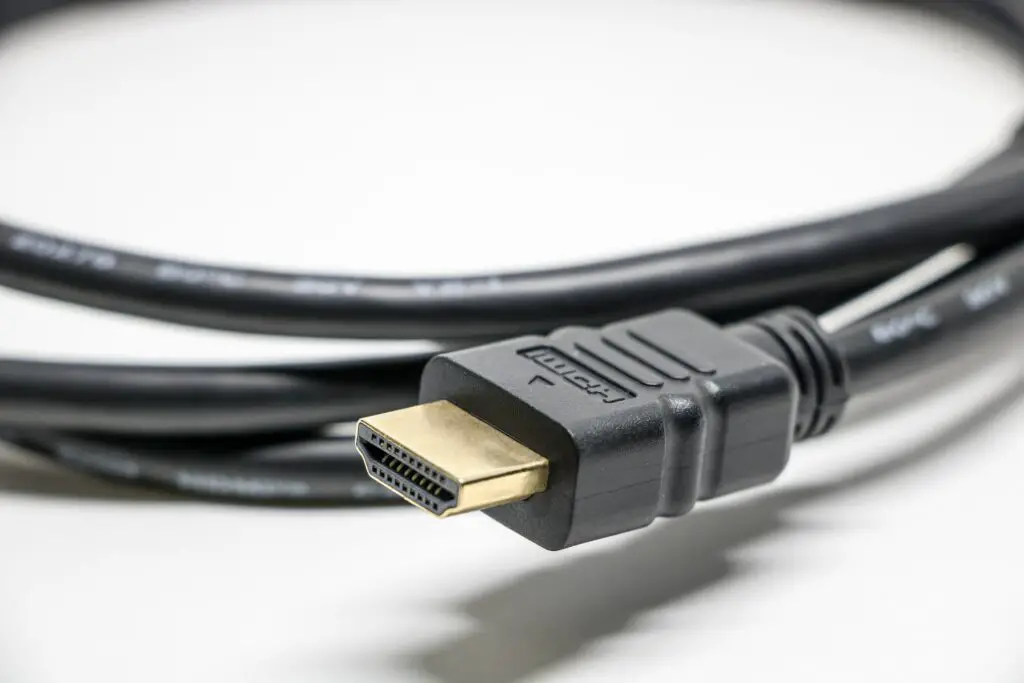
- No Signal on HDMI Input: This is one of the most common issues with Sony TV HDMI ports. The screen displays the message “No Signal” even when a device is connected to the TV via HDMI. To fix this problem, follow the below steps:
- Ensure that the HDMI cable is securely connected to the TV and the device. Also, check the cable for any visible damage or wear and tear.
- Turn off the TV and the device that is connected via HDMI. Disconnect the HDMI cable from both the TV and the device. Wait for a few minutes and then reconnect the HDMI cable to both the TV and the device.
- Switch to the HDMI input on your Sony TV. Press the Input or Source button on your Sony remote and select the HDMI input where your device is connected.
- Check the firmware of your Sony TV. If your Sony TV is running outdated firmware, it may not detect the HDMI signal. Check for firmware updates by going to the Sony support website.
- Picture or Sound Problems: Sometimes, users may encounter issues related to picture or sound when using the HDMI port of Sony TV. The following steps can help resolve such issues:
- Check the audio settings on your Sony TV. Press the Home button on your Sony remote and go to Settings > Sound > Speakers. Ensure that the output is set to TV Speakers or Audio System depending on your configuration.
- Check the picture settings on your Sony TV. Press the Home button on your Sony remote and go to Settings > Picture > Picture mode. Select the appropriate picture mode based on your content and preferences.
- Try using a different HDMI port on your Sony TV. Sometimes, a specific HDMI port may not work correctly due to hardware issues. Try connecting your device to a different HDMI port on your Sony TV.
- Try using a different HDMI cable. If the HDMI cable is damaged or defective, it may cause picture or sound issues. Try using a different HDMI cable and check if the problem persists.
- HDCP Error: HDCP (High-bandwidth Digital Content Protection) is a security feature that prevents unauthorized copying of digital content. Sometimes, users may encounter HDCP errors while using the HDMI port of Sony TV. The following steps can help resolve this issue:
- Ensure that your HDMI cable is HDCP compliant. If your HDMI cable does not support HDCP, it may cause HDCP errors. Try using an HDMI cable that supports HDCP.
- Check the firmware of your Sony TV. If your Sony TV is running outdated firmware, it may cause HDCP errors. Check for firmware updates by going to the Sony support website.
- Reset the HDMI handshake. Turn off your Sony TV and the device that is connected via HDMI. Disconnect the HDMI cable from both the TV and the device. Press and hold the power button on the device for a few seconds. Reconnect the HDMI cable to both the TV and the device and turn them on. This will reset the HDMI handshake and may resolve the HDCP error.
Conclusion: In summary, HDMI ports are essential components of any Sony TV, and their correct functioning is crucial for an enjoyable viewing experience. However, issues related to Sony TV HDMI ports can arise due to various reasons such as hardware issues, outdated firmware, or wrong configurations.