Updating apps on your Samsung Smart TV is an important aspect of keeping your TV up-to-date and ensuring that you have access to the latest features and security updates. In this article, we will provide an overview of how to update apps on a Samsung Smart TV.
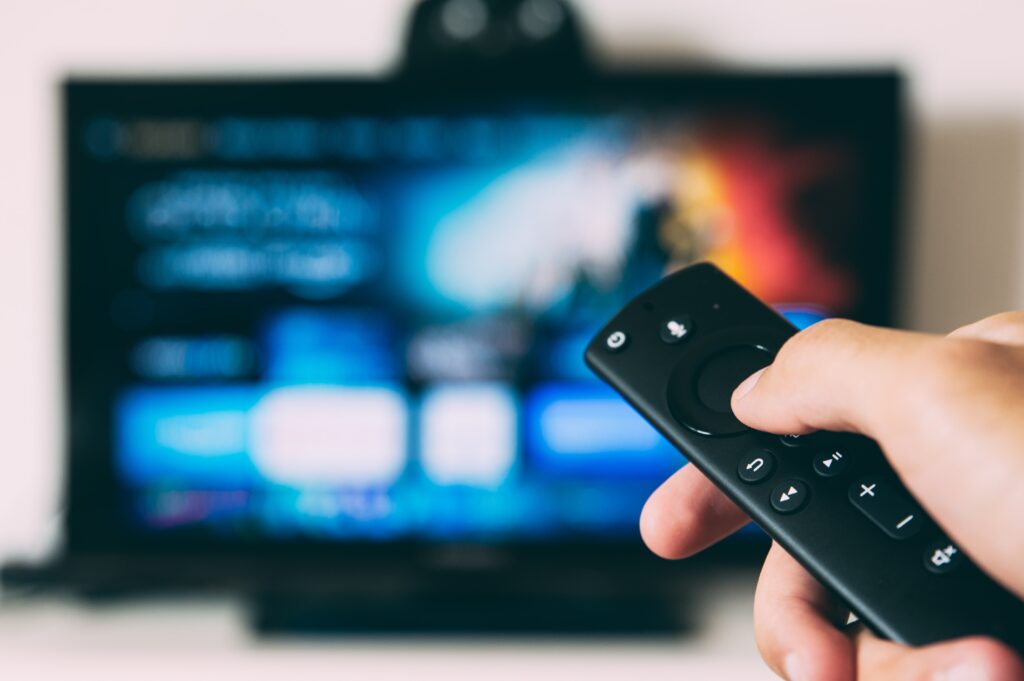
- Automatic Updates By default, your Samsung Smart TV is set to automatically update apps when new versions become available. This means that you do not need to manually update each app individually. To ensure that automatic updates are enabled on your TV, go to Settings > Support > Software Update > Auto Update Apps and ensure that this feature is turned on.
- Manual Updates If you prefer to manually update apps, you can do so by following these steps:
- Press the Home button on your Samsung Smart TV remote.
- Navigate to the app that you want to update using the arrow keys.
- Press and hold the Select button on your remote.
- Select Update Apps from the menu that appears.
- If there is an update available, the app will begin to update automatically.
- App Store Another way to update apps on your Samsung Smart TV is by using the TV’s app store. The app store contains all the available apps for your TV, and you can check for updates directly from the store. To do this, follow these steps:
- Press the Home button on your Samsung Smart TV remote.
- Navigate to the app store using the arrow keys.
- Select the app that you want to update.
- If there is an update available, you will see an Update button. Select this button to begin the update process.
- Software Update In addition to updating individual apps, it is also important to keep your TV’s software up-to-date. Samsung periodically releases software updates that provide new features and security updates. To check for and install software updates, follow these steps:
- Press the Home button on your Samsung Smart TV remote.
- Navigate to Settings using the arrow keys.
- Select Support.
- Select Software Update.
- Select Update Now to check for and install any available updates.
- Network Connection To ensure that your Samsung Smart TV can receive updates, it is important to ensure that it is connected to the internet. To check your network connection, follow these steps:
- Press the Home button on your Samsung Smart TV remote.
- Navigate to Settings using the arrow keys.
- Select General.
- Select Network.
- Ensure that your TV is connected to the internet and that the connection is stable.
- In conclusion, updating apps on your Samsung Smart TV is an important aspect of keeping your TV up-to-date and ensuring that you have access to the latest features and security updates. You can choose to update apps automatically, manually, or through the TV’s app store. Additionally, it is important to keep your TV’s software up-to-date and ensure that it is connected to the internet. By following these steps, you can ensure that your Samsung Smart TV is always up-to-date and running smoothly.
Update Apps Samsung Smart Tv