Setting up Wi-Fi on your Vizio Smart TV is a quick and easy process that can be done in just a few simple steps. In this article, we’ll guide you through the process of connecting your Vizio Smart TV to Wi-Fi and get you up and running in no time.
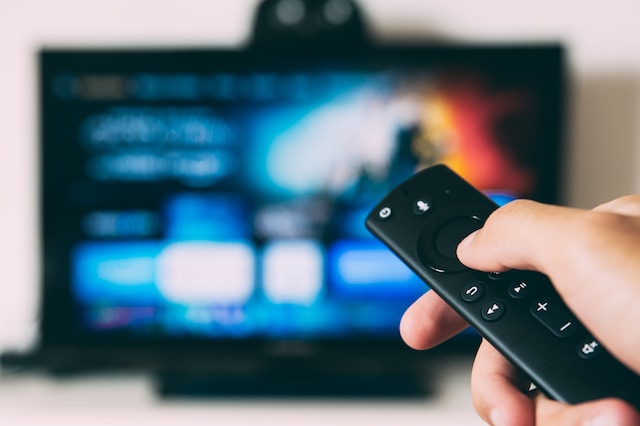
Step 1: Turn on your Vizio Smart TV The first step is to turn on your Vizio Smart TV using your remote control or by pressing the power button on the TV itself.
Step 2: Press the “Menu” button on your remote Once your TV is turned on, press the “Menu” button on your remote control. This will bring up the main menu on your Vizio Smart TV.
Step 3: Navigate to “Network” Using the arrow buttons on your remote control, navigate to the “Network” option in the main menu and press the “OK” button to select it.
Step 4: Select “Wireless” Once you’re in the “Network” menu, select “Wireless” using the arrow buttons on your remote control and press “OK” to proceed.
Step 5: Choose your Wi-Fi network Your Vizio Smart TV will now scan for available Wi-Fi networks in your area. Once the scan is complete, select your Wi-Fi network from the list of available networks and press “OK” to proceed.
Step 6: Enter your Wi-Fi password If your Wi-Fi network is secured with a password, you will be prompted to enter the password using your remote control. Use the arrow buttons to navigate to each letter and number, and press “OK” to select it. Once you’ve entered your password, select “Connect” and press “OK” to proceed.
Step 7: Wait for your Vizio Smart TV to connect to Wi-Fi Your Vizio Smart TV will now attempt to connect to your Wi-Fi network. This process may take a few minutes, so be patient and wait for your TV to establish a connection.
Step 8: Test your connection Once your Vizio Smart TV is connected to Wi-Fi, you should see a message confirming the connection. To test your connection, select “Test Connection” from the “Network” menu and press “OK”. This will run a quick test to confirm that your TV is able to connect to the internet.
Congratulations, you have successfully connected your Vizio Smart TV to Wi-Fi! Now you can start streaming your favorite shows and movies from popular streaming services like Netflix, Hulu, and Amazon Prime Video.
If you experience any issues during the setup process, here are some troubleshooting tips to help you resolve the issue:
- Make sure your Wi-Fi network is turned on and broadcasting. If your Wi-Fi network is not broadcasting, your Vizio Smart TV will not be able to detect it.
- Make sure you’re entering the correct Wi-Fi password. If you enter the wrong password, your Vizio Smart TV will not be able to connect to your Wi-Fi network.
- Move your router closer to your Vizio Smart TV. If your TV is located far away from your router, you may experience a weak Wi-Fi signal, which can cause connection issues.
- Restart your Vizio Smart TV and Wi-Fi router. Sometimes a quick restart can resolve connectivity issues and get you up and running.
By following these simple steps, you can easily connect your Vizio Smart TV to Wi-Fi and start streaming your favorite content in no time.