Vizio is a popular brand of smart TVs that offers a wide range of features and capabilities. However, like any electronic device, they may encounter issues from time to time. In this article, we will cover some common Vizio smart TV troubleshooting steps that you can take to resolve any issues you may encounter.
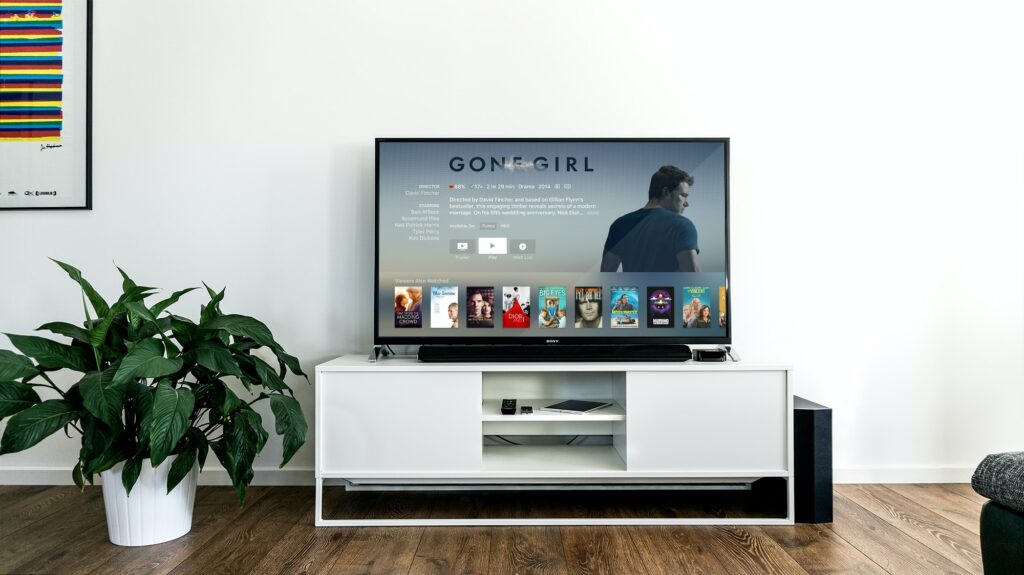
- Check Your Connections
The first step in Vizio smart TV troubleshooting is to check your connections. Make sure that all cables are securely connected to your TV and the devices that you are trying to connect. This includes HDMI cables, power cords, and any other cables that are required to connect your devices. Ensure that there are no loose or damaged cables and replace them if necessary.
- Restart Your TV
If your Vizio smart TV is experiencing issues, try restarting it. To do this, unplug your TV from the power source for at least one minute, then plug it back in and turn it on. This simple step can often resolve many issues and restore your TV’s functionality.
- Update Your TV’s Firmware
Your Vizio smart TV’s firmware may require an update to resolve any issues you may encounter. To update your firmware, go to the settings menu on your TV and look for the “System” or “Support” option. From there, select “Software Update” and follow the on-screen instructions to download and install the latest firmware.
- Reset Your TV to Factory Settings
If your Vizio smart TV is still experiencing issues after checking your connections, restarting your TV, and updating your firmware, you may need to reset your TV to its factory settings. This will erase all of your settings and data, so be sure to back up any important files before proceeding. To reset your TV to factory settings, go to the settings menu and look for the “System” or “Support” option. From there, select “Reset & Admin” and then “Reset to Factory Settings.”
- Check Your Internet Connection
If your Vizio smart TV is having issues with streaming content, such as Netflix or YouTube, check your internet connection. Ensure that your Wi-Fi signal is strong and that your TV is connected to the internet. If you are still having issues, try restarting your Wi-Fi router or connecting your TV to a wired ethernet connection.
- Clear Your App Data and Cache
If you are experiencing issues with a specific app on your Vizio smart TV, try clearing the app’s data and cache. To do this, go to the settings menu and look for the “Apps” or “Applications” option. From there, select the app that is giving you trouble and then select “Clear Data” and “Clear Cache.”
- Contact Vizio Support
If you have tried all of the above troubleshooting steps and are still experiencing issues with your Vizio smart TV, it may be time to contact Vizio support. They can provide additional guidance and support to help you resolve any issues you may be experiencing.
In conclusion, Vizio smart TV troubleshooting involves checking your connections, restarting your TV, updating your firmware, resetting your TV to factory settings, checking your internet connection, clearing your app data and cache, and contacting Vizio support. By following these steps, you can resolve many common issues and restore your Vizio smart TV’s functionality.