Vizio TVs offer a wide range of features, including the ability to connect to the internet. With an internet connection, you can access a variety of streaming services, browse the web, and more. If you’re having trouble connecting your Vizio TV to the internet, here are some steps you can take to troubleshoot the issue.
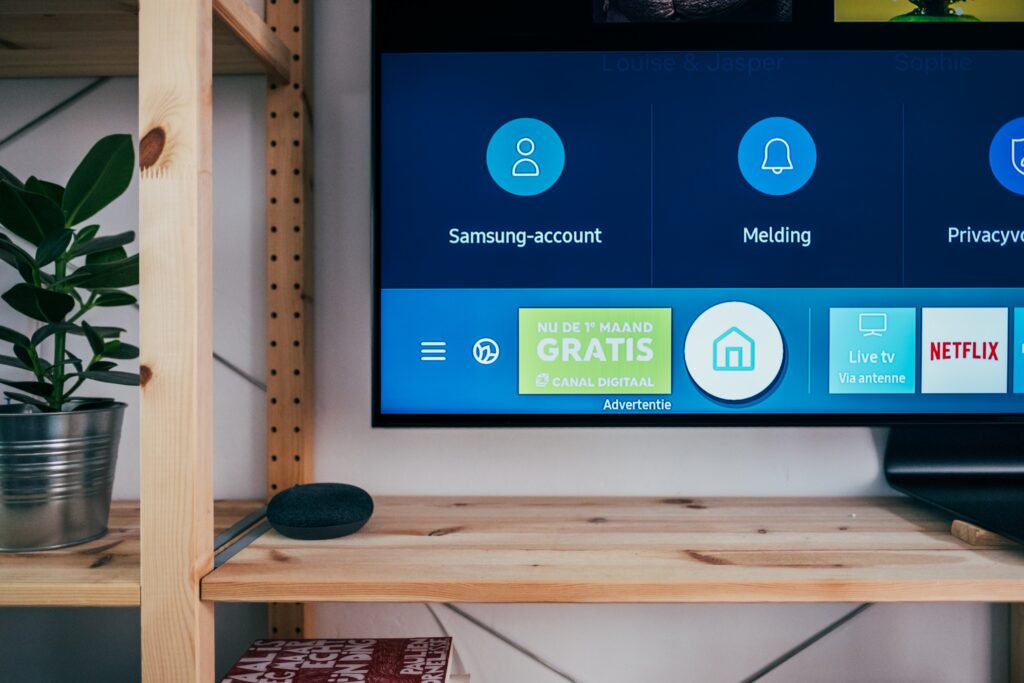
- Check your network settings: The first step is to check your network settings on your Vizio TV. From the main menu, go to Settings > Network and make sure that your Wi-Fi network is selected and that your password is entered correctly. If you’re using a wired connection, make sure that the Ethernet cable is properly connected to your TV and your router.
- Restart your TV and router: If your network settings are correct, the next step is to restart your TV and your router. Unplug both devices from the power source, wait a few seconds, and then plug them back in. This can help clear any temporary issues that may be preventing your TV from connecting to the internet.
- Check your internet connection: If you’re still having trouble connecting to the internet, check your internet connection on other devices in your home. Make sure that your internet service is working properly and that your other devices can connect to the internet. If your internet connection is not working, contact your internet service provider for assistance.
- Update your TV software: It’s also possible that your Vizio TV software may be out of date and need to be updated. Check for any available updates by going to Settings > System > Check for Updates. If an update is available, install it and restart your TV.
- Reset your TV: If none of the above steps have resolved the issue, you may need to reset your Vizio TV to its factory settings. This will erase all of your settings and data on the TV, so it should only be done as a last resort. Check your TV’s user manual or support website for instructions on how to perform a factory reset.
- Contact customer support: If you’ve tried all of the above steps and are still unable to connect your Vizio TV to the internet, it may be time to contact customer support. You can reach out to Vizio’s support team for assistance in troubleshooting the issue.
Once you’ve successfully connected your Vizio TV to the internet, you can start using a variety of features that require an internet connection. Here are some things you can do:
- Stream content: With an internet connection, you can access a variety of streaming services on your Vizio TV, including Netflix, Hulu, Amazon Prime Video, and more. Simply download the app for your preferred service and sign in to start streaming.
- Browse the web: Some Vizio TVs also allow you to browse the web directly from your TV. You can access websites using your TV remote and an on-screen keyboard.
- Use voice commands: Some Vizio TVs have built-in voice assistants, like Amazon Alexa or Google Assistant. With a compatible smart speaker, you can use voice commands to control your TV and search for content.
- Connect other devices: You can also connect other devices to your Vizio TV, like a gaming console or a streaming device. This can give you access to even more content and features.
Overall, connecting your Vizio TV to the internet can open up a world of possibilities for streaming and entertainment. By following these steps and troubleshooting any issues that arise, you can get the most out of your Vizio TV and enjoy all of its features.