Congratulations on your new hard drive! Whether you’re upgrading your computer or adding more storage space, you’re one step closer to a better computing experience. However, there are still a few things you need to do after installing a new hard drive to ensure that everything works properly. Here’s what you need to know:
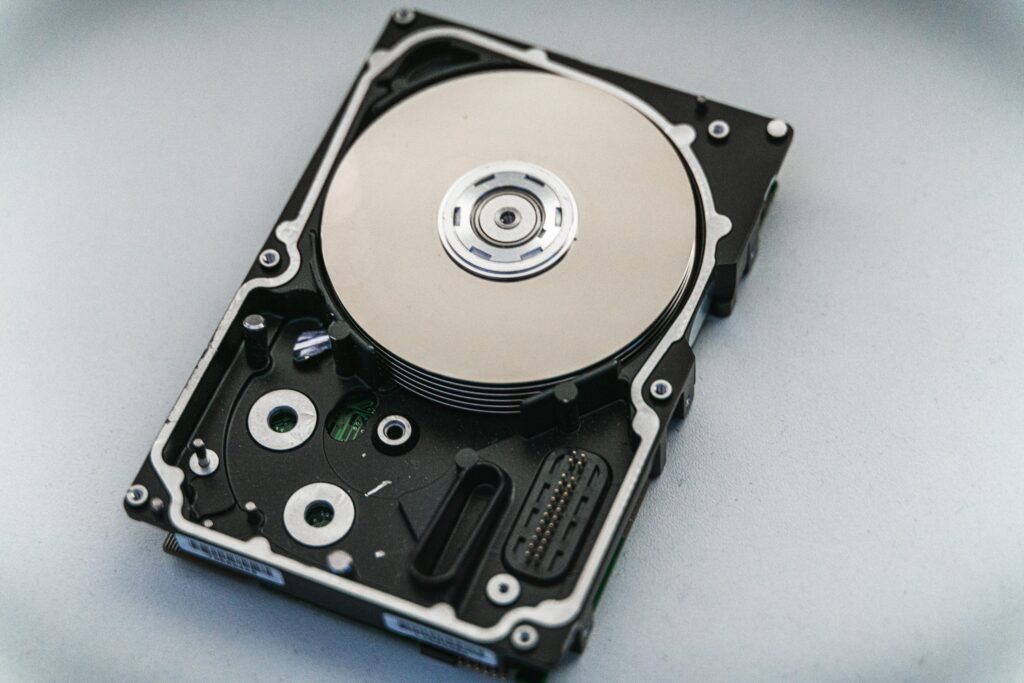
- Initialize and format the hard drive The first thing you need to do after installing a new hard drive is to initialize and format it. Initialization is the process of preparing the disk for use, while formatting creates a file system on the disk so that it can store data. In most cases, you can do both of these tasks in one step using the Disk Management tool in Windows or Disk Utility on a Mac. Here’s how:
On Windows:
- Open Disk Management by pressing Windows key + X and selecting Disk Management from the menu.
- Find the new hard drive in the list of disks. It should be labeled as “unallocated”.
- Right-click on the unallocated space and select “New Simple Volume”.
- Follow the wizard to initialize and format the disk.
On Mac:
- Open Disk Utility by pressing Command + Space and searching for “Disk Utility”.
- Find the new hard drive in the list of disks on the left-hand side.
- Click on the “Erase” tab.
- Choose a format (such as Mac OS Extended or APFS) and give the disk a name.
- Click “Erase” to format the disk.
- Set up automatic backups Now that you have a new hard drive, it’s a good time to set up automatic backups. Backing up your files regularly is essential to protect your data from loss due to hardware failure, theft, or other disasters. You can use a cloud-based backup service like Backblaze or Carbonite, or you can use the built-in backup software on your operating system.
On Windows:
- Open the Control Panel and select “Backup and Restore (Windows 7)”.
- Click on “Set up backup” and follow the wizard to choose a backup location and select the files you want to back up.
On Mac:
- Open Time Machine by clicking on the Time Machine icon in the menu bar.
- Choose a backup disk and select “Back Up Automatically”.
- Move your data If you’re upgrading your computer, you’ll probably want to move your data (such as documents, photos, and music) from your old hard drive to the new one. You can do this manually by copying and pasting files, or you can use a migration tool like PCmover or Migration Assistant (on a Mac).
On Windows:
- Install and run PCmover on your old computer.
- Follow the wizard to select the files and programs you want to transfer.
- Connect the new hard drive to the new computer and run PCmover again to complete the transfer.
On Mac:
- Connect the old and new computers using a FireWire or Thunderbolt cable.
- Open Migration Assistant on the new computer and follow the wizard to transfer your data.
- Install software and drivers If you’ve added a new hard drive to your existing computer, you’ll need to install any software or drivers that are required for the new hard drive to work properly. For example, if you’ve added a new SSD (solid-state drive), you may need to install a driver or firmware update to enable TRIM support. Check the manufacturer’s website for any necessary software or drivers.
- Test the hard drive Finally, it’s a good idea to test the new hard drive to make sure everything is working properly. You can use a disk diagnostic tool like CrystalDiskInfo or Disk Utility to check the health and performance of the disk.
What to do after installing new hard drive?