An external hard drive like G Drive can be really helpful for increasing storage capacity, transferring data between devices, and backing up important files. However, there may be times when the drive does not appear on your computer, causing frustration and worry. In this piece, we will discuss the possible reasons why your G Drive external hard drive may not show up and some solutions to fix it.
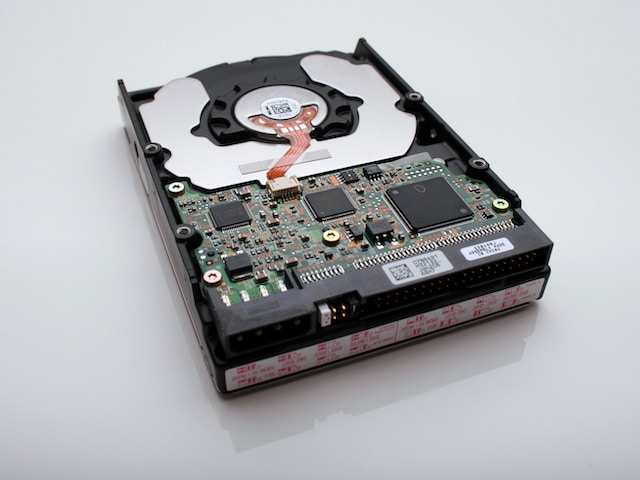
Firstly, ensure that the drive is properly connected to your computer by checking if the USB cable is securely plugged into both the G Drive and your computer’s USB port. If you’re using a laptop, make sure it is connected to a power source as some laptops may not provide enough power to the USB port to power up the external drive.
If the external hard drive still does not appear, there may be an issue with the USB port. Try connecting the G Drive to another USB port on your computer or to another device to see if it is recognized. If it is not recognized on other devices, the issue may be with the USB cable or the G Drive itself.
If the G Drive is still not visible, you can try the following solutions:
- Update the driver software: If your G Drive uses a proprietary driver software, you may need to update it to ensure compatibility with your operating system. Check the manufacturer’s website for the latest driver software and follow the instructions for installation.
- Check the device manager: In Windows, you can open the device manager by pressing the Windows key + X and selecting “Device Manager.” Look for the G Drive under “Disk Drives” or “USB Controllers” and check if there are any warning signs or error messages. If there are, right-click on the G Drive and select “Update Driver Software.”
- Assign a drive letter: If the G Drive is recognized but not assigned a drive letter, it may not show up in File Explorer. To assign a drive letter, open the Disk Management tool by typing “disk management” in the Start menu search bar. Locate the G Drive in the list of disks, right-click on it, and select “Change Drive Letter and Paths.” Click “Add” and choose a drive letter from the drop-down menu.
- Format the drive: If the G Drive is recognized but cannot be accessed, it may be corrupted or formatted in a file system that is not supported by your operating system. To format the drive, right-click on it in Disk Management and select “Format.” Choose a file system that is compatible with your operating system and click “OK” to start the formatting process.
- Use data recovery software: If you accidentally deleted files from the G Drive or the drive is corrupted, you may be able to recover the data using data recovery software. There are many free and paid data recovery software available online that can help you recover lost or corrupted files.
In conclusion, if your G Drive external hard drive is not showing up, there may be several reasons why this is happening. Check if the drive is properly connected, try a different USB port or device, update the driver software, check the device manager, assign a drive letter, format the drive, or use data recovery software. By following these solutions, you can hopefully fix the issue and access your data on the G Drive once again.