A hard drive is a fundamental computer component utilized for storing and retrieving data. It is capable of saving operating systems, applications, documents, and other files. This article focuses on hard drives with Windows installed.
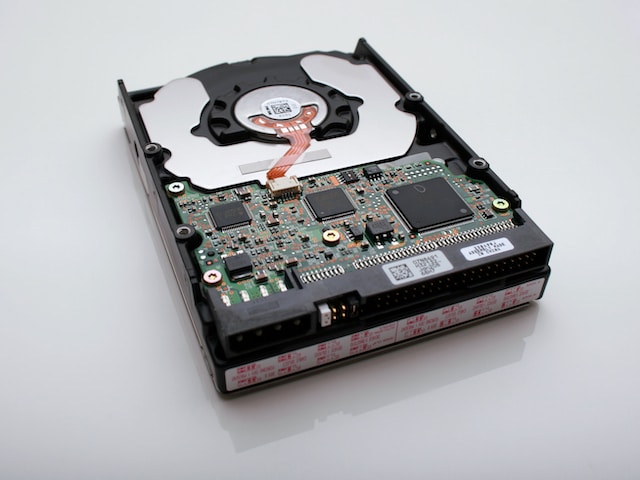
When you acquire a new computer or install a new hard drive, you will need to install an operating system to use it. Microsoft’s Windows is one of the most popular operating systems used in personal and professional environments.
To install Windows on a hard drive, you will require a Windows installation media like a DVD or USB drive. Once you have the installation media, you can follow the following steps to install Windows on the hard drive.
Step 1: Connect the hard drive to the computer
Begin by connecting the hard drive to the computer. Open the computer case and connect the hard drive to an available SATA or IDE port on the motherboard. Also, connect the power cable to the hard drive.
Step 2: Boot from the installation media
Once the hard drive is connected, you need to boot the computer from the installation media. Change the boot order in the BIOS or UEFI settings of the computer to do this. Access the BIOS or UEFI settings by pressing a specific key during the boot process, such as F2 or Delete.
Step 3: Install Windows
After booting from the installation media, the Windows installation screen will appear. Choose the language, time and currency format, and keyboard or input method. Click “Next” to proceed.
Click “Install now” to begin the installation process. Enter the product key to activate Windows. If you don’t have a product key, select “I don’t have a product key” and continue with the installation. However, you will need to activate Windows later to use all its features.
Accept the license terms by checking the box and clicking “Next”. Select the type of installation you want to perform on the next screen. You can choose to upgrade an existing installation or perform a custom installation.
If you select a custom installation, choose the hard drive where you want to install Windows. You can also create or delete partitions and format the hard drive during this step.
Once you have selected the hard drive, click “Next” to initiate the installation process. The installation process may take several minutes or more, depending on the computer’s speed.
Step 4: Complete the installation
After the installation is complete, set up Windows by entering a user name and password. Customize settings such as the desktop background, theme, and screen resolution.
After completing the setup, you will be presented with the Windows desktop. You can now use your computer for various tasks such as web browsing, document editing, gaming, and more.
In conclusion, installing Windows on a hard drive is a simple process that can be completed by following a few easy steps. By installing Windows on a hard drive, you can utilize your computer for a range of tasks.