Downloading apps on a Samsung Smart TV is a straightforward process that can be done in a few simple steps. In this guide, we will provide a step-by-step guide on how to download apps on Samsung Smart TV Smart Hub.
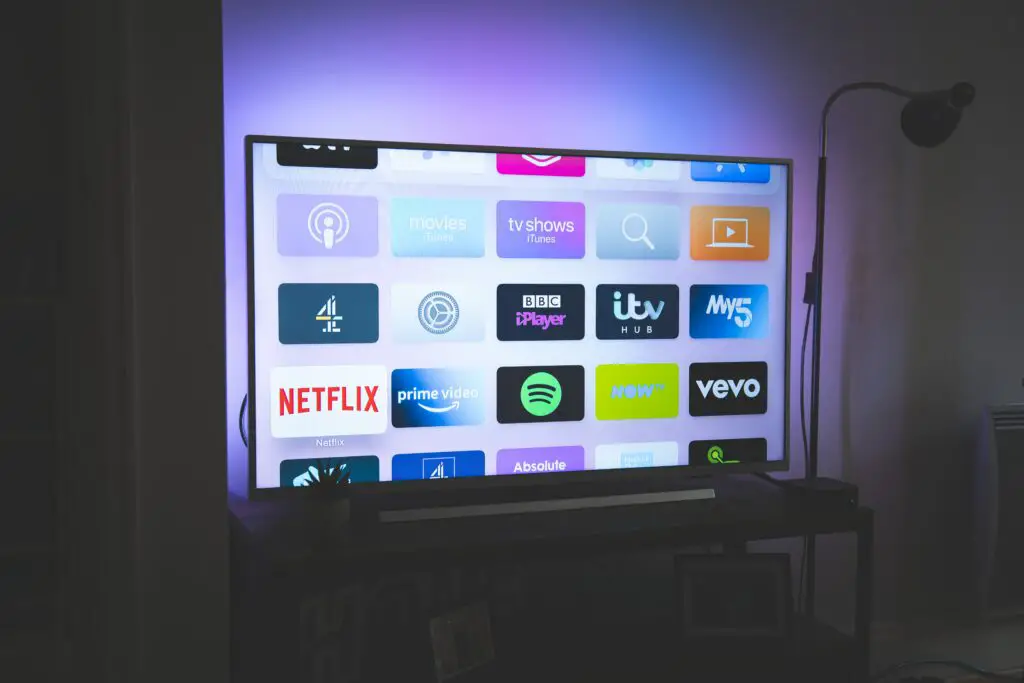
Step 1: Ensure that your Samsung Smart TV is connected to the internet
To download apps on your Samsung Smart TV, you will need to ensure that your TV is connected to the internet. You can do this by connecting your TV to your home Wi-Fi network or by using an Ethernet cable to connect your TV directly to your router.
Step 2: Navigate to the Samsung Smart Hub
Once your Samsung Smart TV is connected to the internet, navigate to the Smart Hub by pressing the Home button on your remote control. The Smart Hub is the main menu on your Samsung Smart TV and is where you can access all of the TV’s apps, games, and other features.
Step 3: Select the Apps icon
Once you are in the Smart Hub, navigate to the Apps icon using the arrow buttons on your remote control. The Apps icon is represented by a shopping bag with the word “Apps” written on it.
Step 4: Browse the available apps
Once you have selected the Apps icon, you will be taken to the Apps Store, where you can browse and download available apps. You can browse apps by category, such as entertainment, sports, or games. You can also search for specific apps using the search bar at the top of the screen.
Step 5: Select the app you want to download
Once you have found the app you want to download, select it using the arrow buttons on your remote control. This will take you to the app’s information page, where you can read a description of the app, view screenshots and ratings, and see additional information such as the app’s size and requirements.
Step 6: Download and install the app
To download and install the app, select the Download button using the arrow buttons on your remote control. The app will begin downloading, and once it is finished, it will automatically install on your Samsung Smart TV.
Step 7: Launch the app
Once the app is installed, you can launch it from the Smart Hub by selecting the app icon using the arrow buttons on your remote control. The app will open and you can start using it.
Step 8: Manage your apps
You can manage your downloaded apps from the Smart Hub. To do this, navigate to the Apps icon using the arrow buttons on your remote control and select the My Apps option. Here, you can view all of the apps that you have downloaded, update them, or delete them if you no longer need them.
In conclusion, downloading apps on Samsung Smart TV Smart Hub is a simple and easy process that can be done in just a few steps. By following the steps outlined in this guide, you can browse and download a variety of apps to enhance your viewing experience on your Samsung Smart TV.