Downloading apps onto a Hisense Smart TV is a straightforward process that involves connecting the TV to the internet and accessing the app store. Here’s a step-by-step guide on how to download apps onto a Hisense Smart TV:
Step 1: Connect your Hisense Smart TV to the internet
Before you can download apps onto your Hisense Smart TV, you need to make sure it’s connected to the internet. You can do this by connecting your TV to your home Wi-Fi network. To do this, go to the settings menu on your TV and select “Network.” Then, select “Wi-Fi” and follow the prompts to connect to your home network.
Step 2: Open the app store
Once your TV is connected to the internet, you can access the app store. To do this, press the home button on your remote to open the main menu. From there, navigate to the “Apps” icon and select it. This will take you to the app store.
Step 3: Browse or search for apps
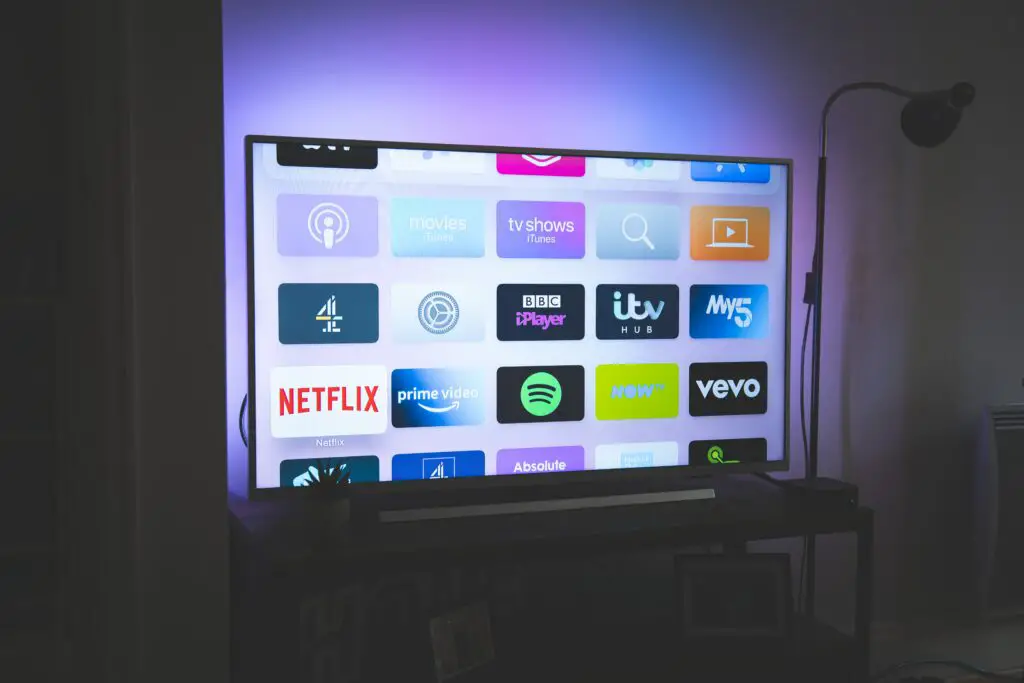
Once you’re in the app store, you can browse through different categories of apps, or search for specific apps using the search function. The app store on Hisense Smart TVs offers a variety of apps, including popular streaming services like Netflix and Hulu, as well as games and utility apps.
Step 4: Select and download the app
When you find an app you want to download, select it to see more information about the app, including its description, rating, and reviews. If you decide you want to download the app, select the “Download” button. The app will begin to download and install onto your TV.
Step 5: Launch the app
Once the app is downloaded and installed, you can launch it by selecting it from the main menu. Some apps may require you to create an account or sign in before you can use them.
Step 6: Manage your apps
After you’ve downloaded an app, you can manage it by going to the “My Apps” section of the app store. From there, you can view your installed apps, update them, or uninstall them if you no longer need them.
Tips and tricks for downloading apps on a Hisense Smart TV
- Make sure your TV is running the latest version of the operating system. This will ensure you have access to the latest features and bug fixes.
- Some apps may not be available in certain regions or countries. If you can’t find a specific app in the app store, it may not be available in your location.
- You may need to create an account or sign in to access some apps. Make sure you have any necessary login information before attempting to download an app.
- If you’re having trouble downloading an app, try restarting your TV and/or resetting your internet connection. This can often resolve connectivity issues.
In conclusion, downloading apps onto a Hisense Smart TV is a simple process that involves connecting the TV to the internet and accessing the app store. Once you’ve found the app you want to download, simply select it and follow the prompts to download and install it onto your TV. With a wide range of apps available, you can customize your TV viewing experience to suit your needs and preferences.