A factory reset is a process that restores a device to its original settings, erasing all data and configurations. If you want to reset an external hard drive to its factory settings, the steps will depend on the brand and model of your device. However, there are some general guidelines that you can follow. In this article, we will provide you with the steps to factory reset an external hard drive.
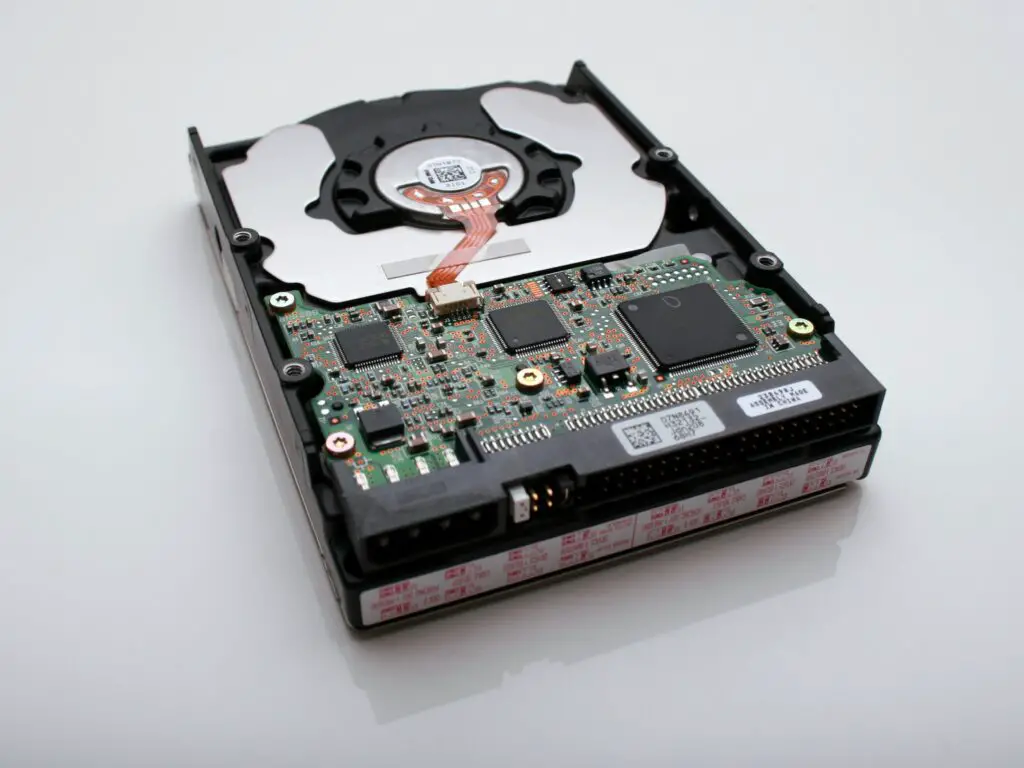
Before you proceed with the reset, it’s important to make sure that you have backed up all the data on your external hard drive. Once you reset the device, all data will be lost permanently, and it won’t be recoverable. So, it’s essential to make sure that you have a backup of all important files and data.
Step 1: Connect the External Hard Drive to Your Computer
The first step is to connect your external hard drive to your computer. Use a USB cable or any other compatible cable to connect your external hard drive to your computer.
Step 2: Access the Disk Management Tool
Once you have connected your external hard drive to your computer, access the Disk Management tool. This tool allows you to manage and partition your hard drives. To access the Disk Management tool, follow these steps:
- Press Windows key + X on your keyboard
- Click on Disk Management from the list of options.
Step 3: Locate Your External Hard Drive
In the Disk Management tool, locate your external hard drive. You can identify it by its size and volume name.
Step 4: Delete Existing Partitions
To reset your external hard drive to its factory settings, you need to delete all existing partitions. To do this, follow these steps:
- Right-click on the partition you want to delete
- Select Delete Volume from the context menu
- Confirm the deletion by clicking Yes
Repeat this process for all partitions on your external hard drive.
Step 5: Create a New Partition
After deleting all existing partitions, you need to create a new partition. To do this, follow these steps:
- Right-click on the unallocated space
- Select New Simple Volume from the context menu
- Follow the prompts in the wizard to create a new partition
Step 6: Format the New Partition
Once you have created a new partition, you need to format it. To format the partition, follow these steps:
- Right-click on the new partition
- Select Format from the context menu
- Select the file system you want to use (NTFS, FAT32, exFAT, etc.)
- Click OK to format the partition
Step 7: Assign a Drive Letter
After formatting the partition, you need to assign a drive letter. To assign a drive letter, follow these steps:
- Right-click on the new partition
- Select Change Drive Letter and Paths from the context menu
- Click Add to assign a drive letter
- Select a drive letter from the dropdown list
- Click OK to assign the drive letter
Step 8: Finalize the Reset
After assigning a drive letter, you have completed the process of resetting your external hard drive to its factory settings. You can now close the Disk Management tool and use your external hard drive as a new device.
In conclusion, resetting an external hard drive to its factory settings is a process that erases all data and configurations from the device. To reset your external hard drive, you need to access the Disk Management tool, delete all existing partitions, create a new partition, format the new partition, and assign a drive letter. It’s essential to back up all data before resetting the device, as all data will be lost permanently.