There are various reasons why one might want to set an external hard drive as the primary drive on their computer, including increased storage capacity, better performance, or backup purposes. The specific steps involved may differ depending on the operating system and type of hard drive used. Nonetheless, the following are general steps that you can take:
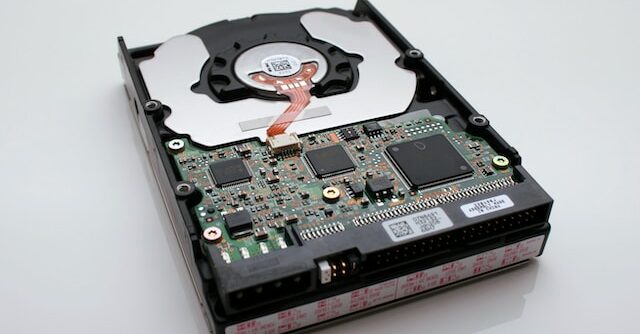
Step 1: Connect the External Hard Drive To begin with, connect the external hard drive to your computer using a Thunderbolt, USB, or Firewire cable, depending on the type of drive you have. Ensure that your computer recognizes and properly connects to the drive before proceeding.
Step 2: Format the External Hard Drive Before you can use the external hard drive as the primary drive, you need to format it. Formatting the drive erases all its data and sets it up for use with your operating system. To format the drive, take the following steps:
For Windows:
Right-click on the external hard drive in File Explorer. Choose Format from the dropdown menu. Select a file system, preferably NTFS for Windows, and set the allocation unit size. Name the drive and choose Quick Format. Click Start to initiate the formatting process. For macOS:
Go to the Utilities folder and open Disk Utility. Select the external hard drive from the list on the left of the window. Click Erase at the top of the window. Choose a file system, either Mac OS Extended or APFS, and name the drive. Click Erase to begin formatting the drive.
Step 3: Install the Operating System on the External Hard Drive After formatting the external hard drive, you need to install the operating system on it. The installation process may differ depending on your operating system and the method you prefer. You can install the operating system from a DVD, USB flash drive, or over the internet. Ensure you follow the instructions carefully and select the external hard drive as the installation location.
For Windows:
Insert the Windows installation DVD or USB flash drive and restart your computer. Boot from the installation media and select Install Now. Accept the license terms and select Custom installation. Select the external hard drive as the installation location and click Next. Follow the instructions to complete the installation process. For macOS:
Restart your computer and hold the Option key. Choose the external hard drive as the boot disk. Follow the instructions to complete the installation process.
Step 4: Set the External Hard Drive as the Primary Drive Once you install the operating system on the external hard drive, you need to set it as the primary drive. This process may differ depending on your operating system and BIOS settings. Here’s what you need to do:
For Windows:
Restart your computer and enter the BIOS settings. Set the external hard drive as the first boot device. Save the changes and exit the BIOS settings. Restart your computer and boot from the external hard drive. For macOS:
Restart your computer and hold the Option key. Select the external hard drive as the boot disk. Your computer will now boot from the external hard drive.
Conclusion Setting an external hard drive as the primary drive on your computer is a great way to increase storage capacity, improve performance, or create backups. Follow the steps outlined in this article carefully to format the external hard drive, install the operating system, and set it as the primary drive. It’s crucial to back up important data before formatting the drive and pay attention to instructions to avoid any potential problems.