If your Lenovo laptop’s HDMI port is not working, it can be frustrating and can affect your ability to connect to an external display or monitor. However, there are several possible reasons why the HDMI port may not be functioning properly, and there are several solutions you can try to fix the issue.
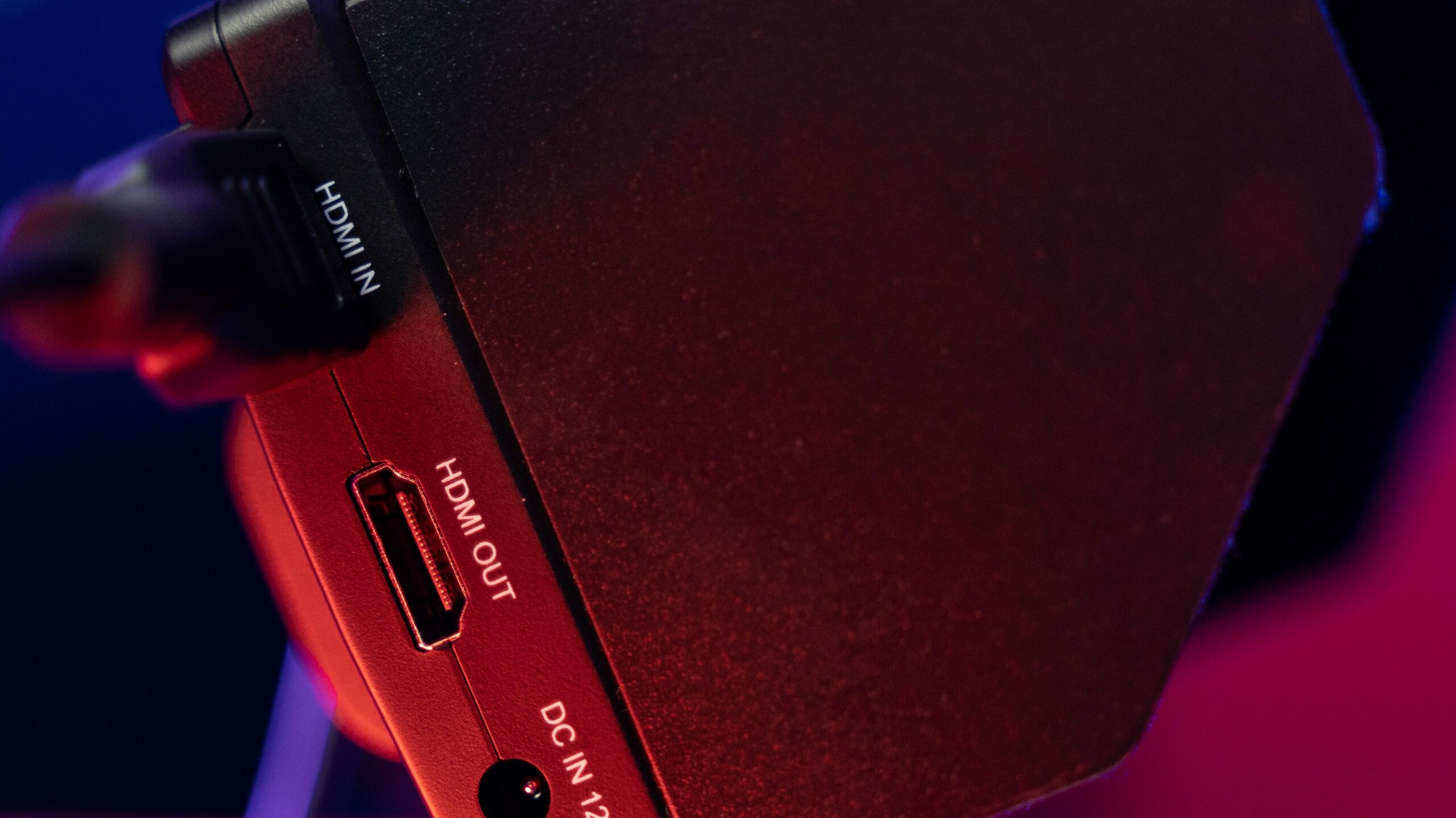
- Check the connection: Before diving into any complicated fixes, it’s important to make sure that the HDMI cable is properly connected to both your laptop and the external display or monitor. Ensure that the HDMI cable is plugged in securely and that the connection is not loose.
- Update the graphics driver: If the HDMI port is not working, it may be due to outdated or corrupt graphics drivers. You can check for updates through the Device Manager by right-clicking on the Start button and selecting “Device Manager.” Then, expand the “Display adapters” section and right-click on the graphics card. Select “Update driver” and follow the prompts to install any available updates.
- Restart your laptop: Sometimes, restarting your laptop can solve the issue. Try restarting your Lenovo laptop and then connecting it to the external display or monitor via the HDMI port.
- Check the display settings: If the HDMI port is not working, it may be due to incorrect display settings. Right-click on the desktop and select “Display settings.” Make sure that the external display is selected as the primary display and that the resolution and refresh rate are compatible with the external display or monitor.
- Disable and enable the HDMI port: You can try disabling and enabling the HDMI port to see if that solves the issue. To do this, go to the Device Manager, expand the “Display adapters” section, and right-click on the graphics card. Select “Disable device” and wait a few seconds. Then, right-click again and select “Enable device.”
- Test the external display or monitor: If none of the above solutions work, it may be an issue with the external display or monitor. Try connecting the same external display or monitor to a different laptop or computer to see if it works. If it does not, then the issue may be with the external display or monitor and not your Lenovo laptop.
- Hardware issue: If none of the above solutions work, it may be a hardware issue with your Lenovo laptop’s HDMI port. In this case, you may need to take your laptop to a professional technician for repair.
In summary, if your Lenovo laptop’s HDMI port is not working, there are several possible reasons and solutions to try. Checking the connection, updating the graphics driver, restarting your laptop, checking the display settings, disabling and enabling the HDMI port, and testing the external display or monitor are all possible solutions. If none of these solutions work, it may be a hardware issue that requires professional repair.
Lenovo HDMI Port Not Working