Moving files to an external hard drive can be a useful way to free up space on your computer’s internal storage, backup important data, and transport files between devices. Here are some steps to follow when moving files to an external hard drive:
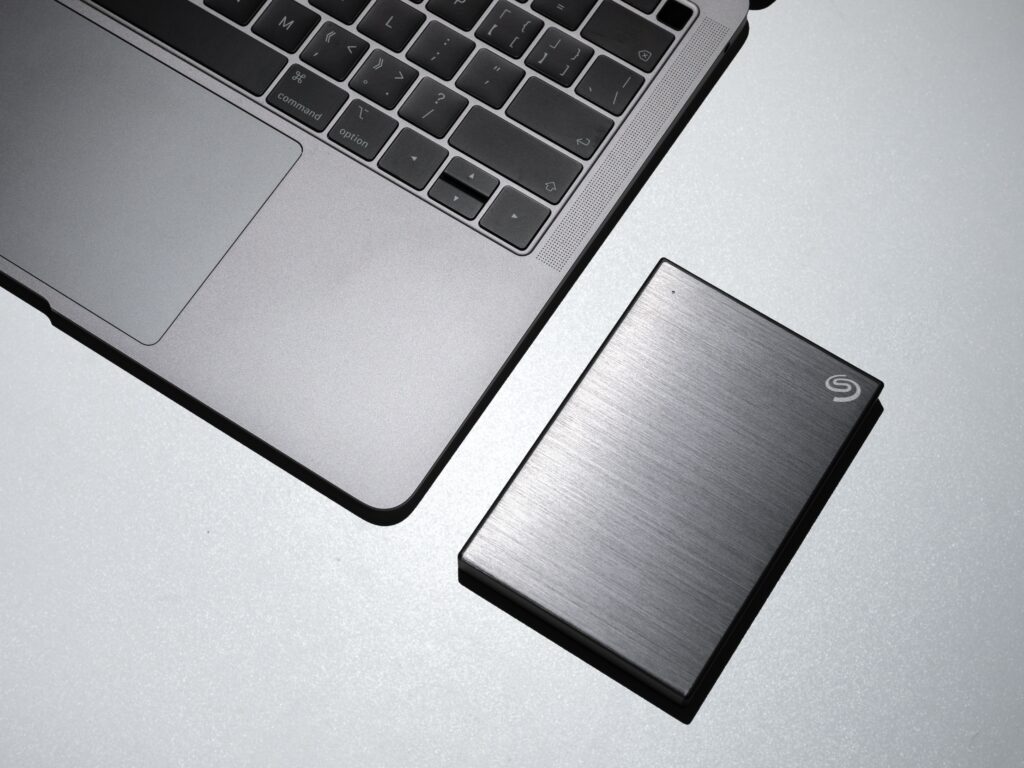
Connect the external hard drive to your computer. Most external hard drives connect via USB, so plug in the USB cable to an available USB port on your computer. Depending on the drive, you may also need to plug in a power source.
Make sure your computer recognizes the external hard drive. You should see a notification that the drive has been connected, and you can check if it is recognized by opening File Explorer on a PC or Finder on a Mac. The external hard drive should appear as a new drive.
Decide which files you want to move. It’s a good idea to take some time to review your files and decide which ones you want to move to the external hard drive. This could include large media files, such as photos, videos, and music, or important documents that you want to back up.
Copy the files to the external hard drive. You can do this by simply dragging and dropping the files from your computer’s internal storage to the external hard drive. Another option is to use the copy and paste function. To do this, select the files you want to move, right-click and choose “Copy,” then go to the external hard drive and right-click and choose “Paste.” This will create a duplicate of the file on the external hard drive while leaving the original on your computer.
Check that the files have been successfully transferred. Once the copying process is complete, check the external hard drive to make sure that the files have been transferred successfully. You can do this by navigating to the external hard drive in File Explorer or Finder and checking that the files are there. You can also open the files to make sure that they work correctly.
Safely eject the external hard drive. When you’re finished moving files to the external hard drive, it’s important to safely eject the drive before unplugging it from your computer. This helps to prevent data loss or corruption. To safely eject the drive, right-click on the drive in File Explorer or Finder and choose “Eject.”
Store the external hard drive in a safe place. Once you’ve safely ejected the external hard drive, store it in a safe place, such as a locked drawer or fireproof safe. This will help to protect your files from loss, theft, or damage.
Overall, moving files to an external hard drive is a simple process that can help you to free up space on your computer, backup important data, and transport files between devices. By following these steps, you can ensure that your files are transferred safely and securely.