The Steam Deck is a handheld gaming console that allows players to play PC games on the go. It comes with a built-in storage capacity of either 64GB, 256GB, or 512GB, but some users may want to expand their storage capacity with an external hard drive. Here are the steps to use an external hard drive with a Steam Deck:
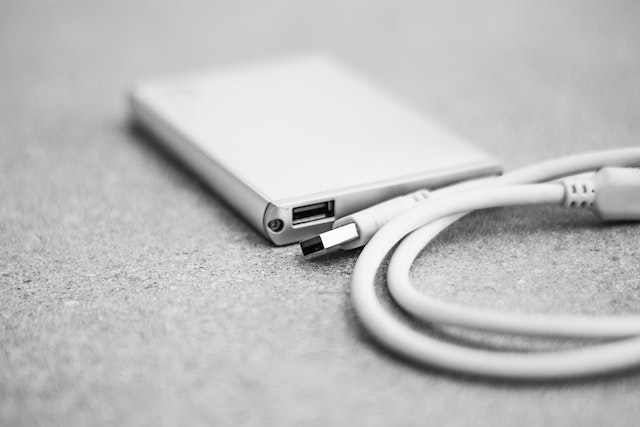
- Choose the right external hard drive: The Steam Deck supports external hard drives that use the USB 3.0 or USB 3.1 Gen 2 standard. It’s important to choose a hard drive that has enough storage space and is compatible with these standards. Ideally, you should look for a hard drive with at least 1TB of storage capacity.
- Connect the hard drive: Connect the external hard drive to the Steam Deck using a USB-C to USB-A adapter or cable. Once connected, the Steam Deck should recognize the external hard drive and prompt you to format it.
- Format the hard drive: If the external hard drive has never been used with the Steam Deck, it will need to be formatted to work with the console. Formatting erases all data on the hard drive, so be sure to back up any important files before proceeding. To format the hard drive, go to Settings > System > External Storage, select the hard drive, and then choose Format.
- Choose where to install games: Once the external hard drive is formatted, you can choose where to install games. By default, Steam will install games on the built-in storage of the Steam Deck, but you can change this by going to Settings > Downloads > Steam Library Folders, and then adding the external hard drive as a new library folder.
- Install games: Once you’ve added the external hard drive as a library folder, you can install games directly to the external hard drive. When installing a game, you’ll be prompted to choose where to install it. Select the external hard drive as the installation location, and then follow the prompts to complete the installation.
- Play games: Once the game is installed on the external hard drive, you can play it on the Steam Deck just like any other game. Simply launch Steam, select the game, and then press play.
It’s important to note that while using an external hard drive can provide additional storage space, it may also affect game performance. Games installed on an external hard drive may load slower than games installed on the built-in storage, and there may be other performance issues as well. If you notice performance issues while playing a game installed on an external hard drive, try moving it to the built-in storage or upgrading to a faster external hard drive.
In conclusion, using an external hard drive with a Steam Deck can provide additional storage space and allow users to install more games. With the right external hard drive and a few simple steps, it’s easy to expand the storage capacity of a Steam Deck and enjoy more games on the go. However, it’s important to keep in mind that using an external hard drive may affect game performance and to choose an external hard drive that meets the Steam Deck’s requirements for optimal performance.